GTA 6 lets your car drive itself in Cinematic mode
Turn on GTA 6's auto-drive in Cinematic mode: set a destination, hold down on the D-pad, press Options or Menu, then enable Auto Drive from the camera view.
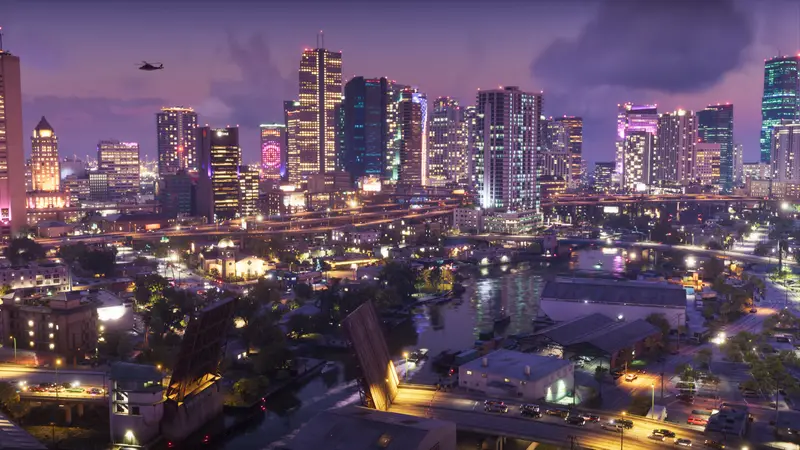
GTA 6 includes a cinematic auto-drive mode that takes over the steering, follows traffic and lets you watch Vice City roll past. It isn’t in the pause menu. You reach it with a button combination while you’re behind the wheel, and Game Rant’s walkthrough lays out the steps.
Start by getting into a car. On Xbox, press Y to open the door; on PS5, press Triangle. Once the car is moving, hold down on the D-pad, then press the Options or Menu button to switch to Cinematic mode. The mode only works with a destination marked on the map, so set a waypoint first.
In Cinematic mode the camera cuts between different angles. Accelerate a little and an Auto Drive option appears in the bottom-right corner of the screen. Select it and the game handles the route. You can change the auto-drive speed with LT and RT on Xbox or L2 and R2 on PS5.
To leave Cinematic mode, hold down on the D-pad again. Rockstar has not detailed any limits on where the mode can be used, so the quickest way to learn its quirks is to set a waypoint across the map and see how it handles traffic on the way.